Shopify Integration
Install the Nventory Shopify app and connect your store.
Connecting Your Shopify Store
Nventory connects to Shopify through an app installation — no API keys to copy.
First-Time Setup
Navigate to Integrations
From your dashboard sidebar, click on Integrations to see all available platforms.
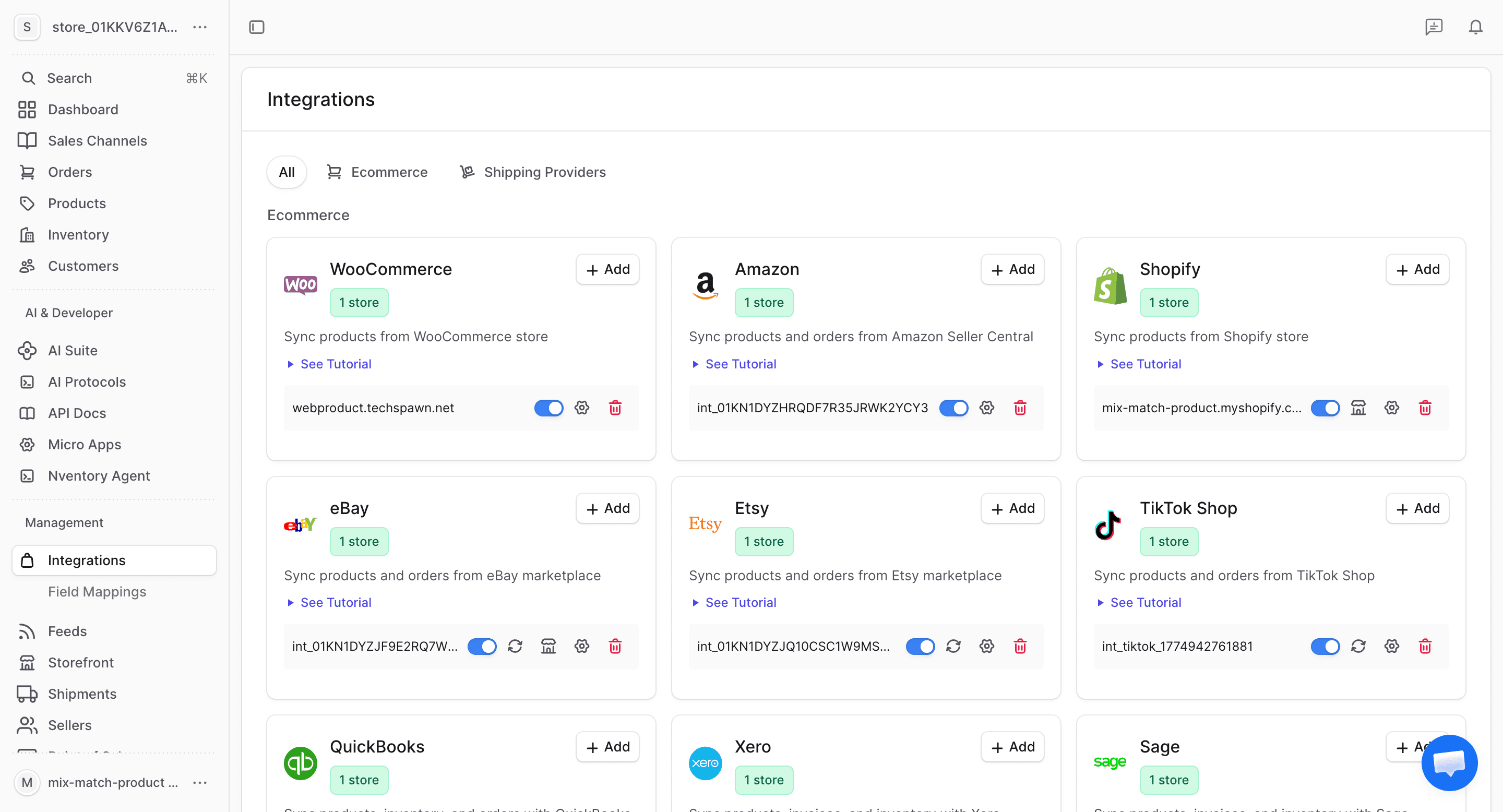
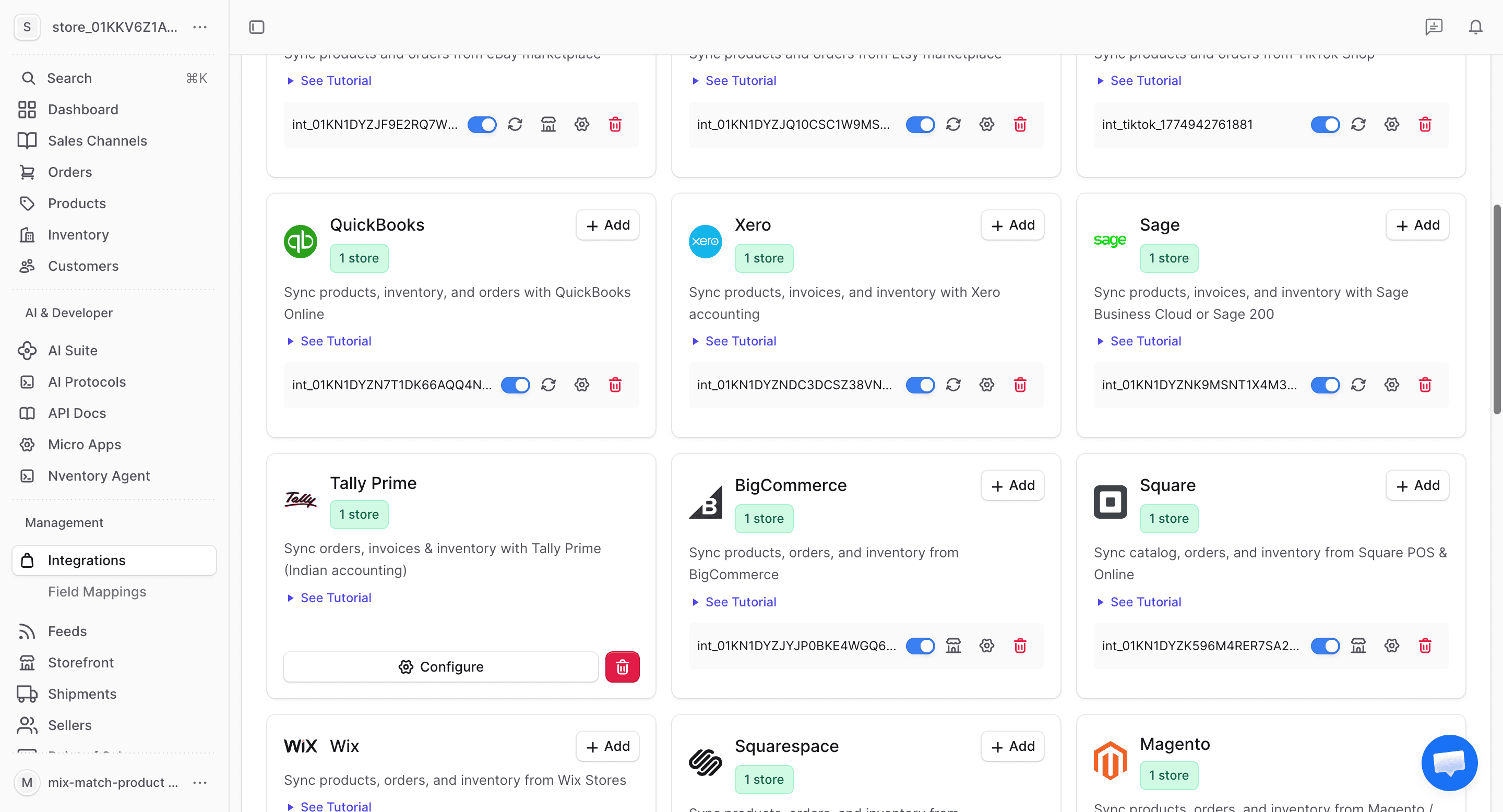
Click Add on Shopify
Find the Shopify card in the available integrations and click the + Add button to start connecting your store.
Enter Your Shopify Domain
Enter your Shopify store domain (e.g., mystore.myshopify.com) and click Connect Shopify. You'll be redirected to Shopify to authorize the connection.
Approve Permissions
Shopify will show the permissions Nventory needs:
- Read and write products
- Read and write orders
- Read and write inventory
- Read locations
Click Install app to continue.
Choose Setup Option
After approval, you'll see two options:
| Option | When to Use |
|---|---|
| Create New Store | First time using Nventory — creates a new Nventory account |
| Connect to Existing Store | You already have an Nventory account and want to add this Shopify store |
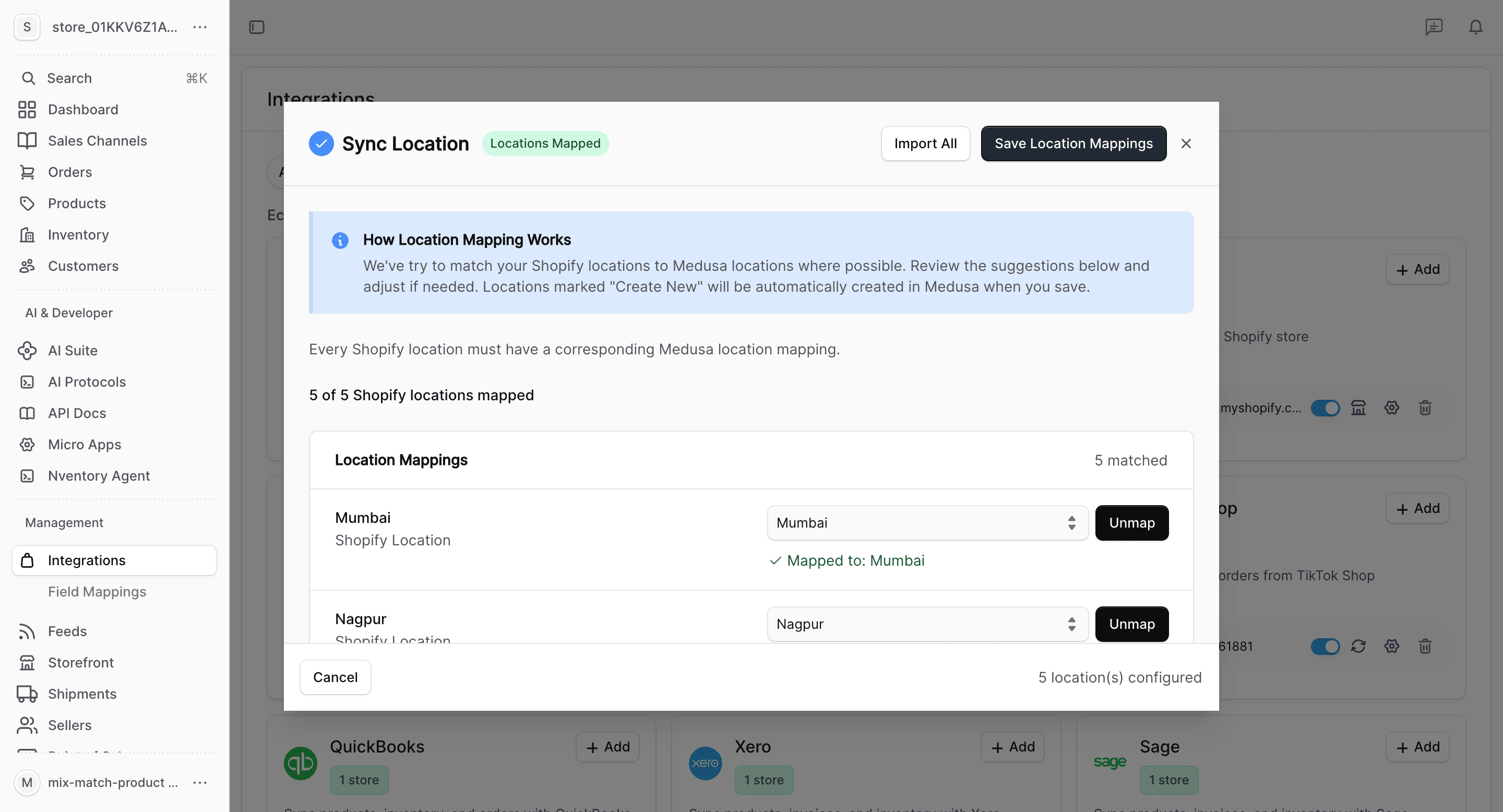
Map Your Locations
Map your Shopify fulfillment locations to Nventory stock locations. Each Shopify location needs a corresponding Nventory location for accurate inventory tracking.
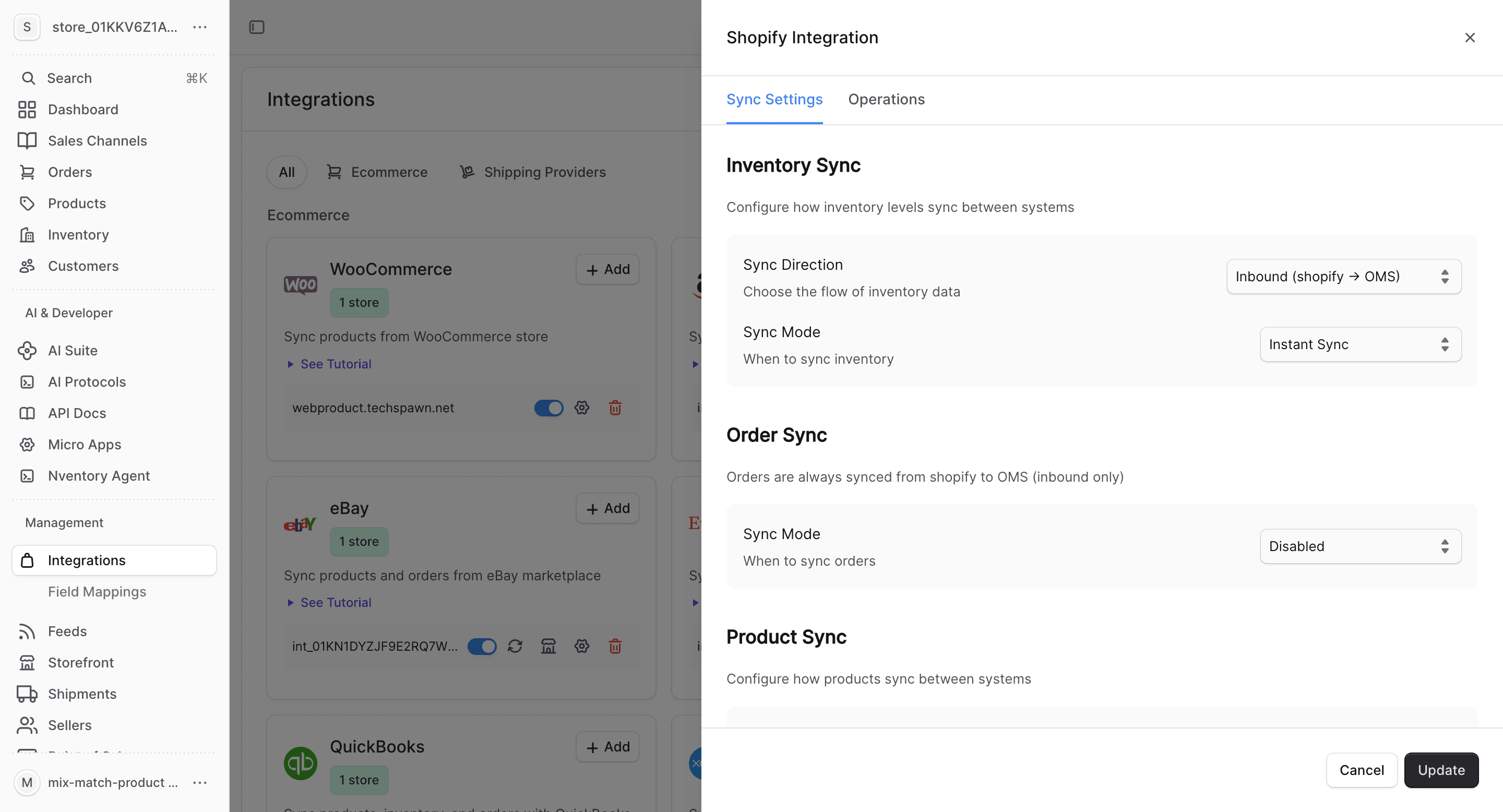
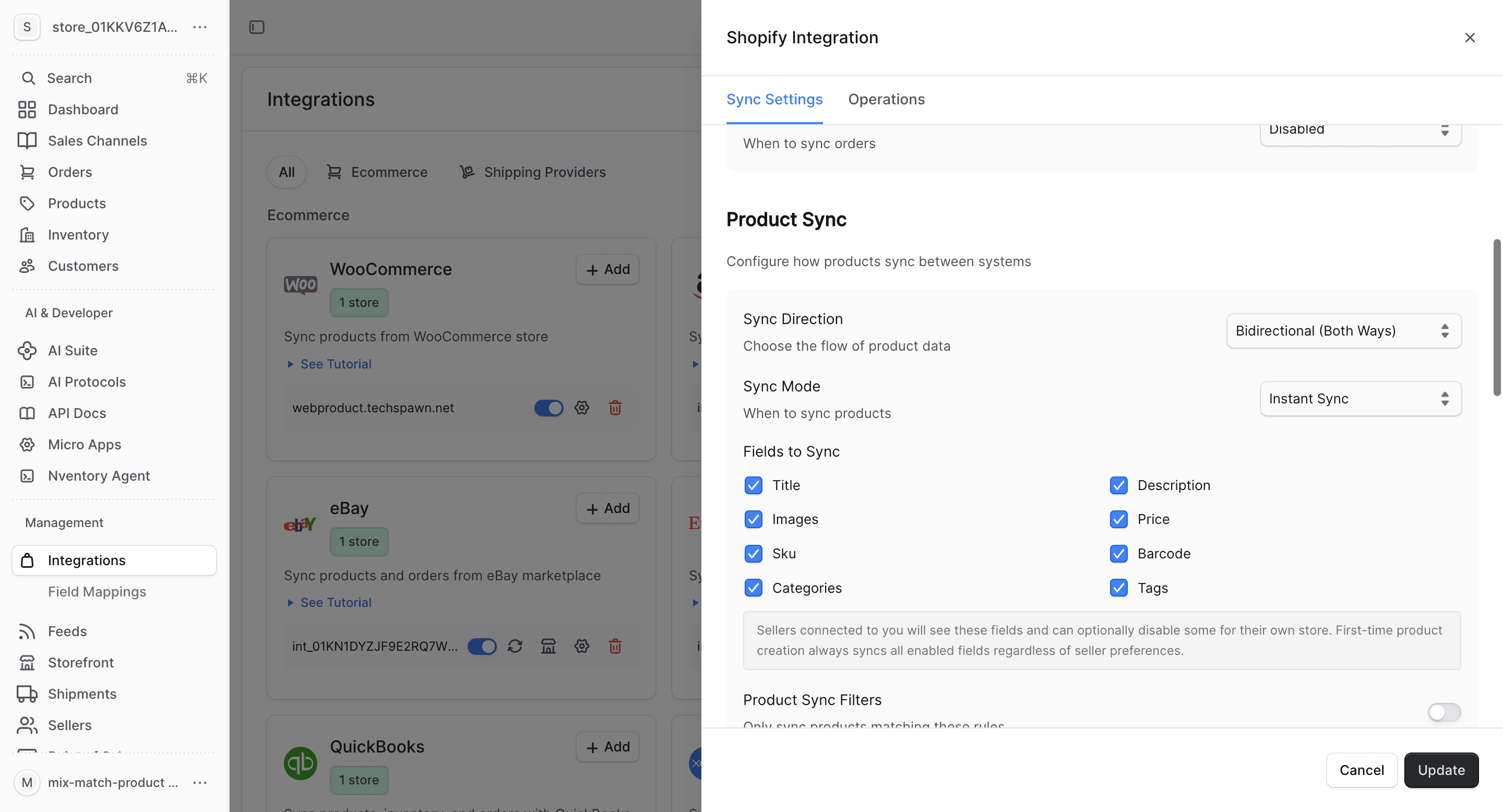
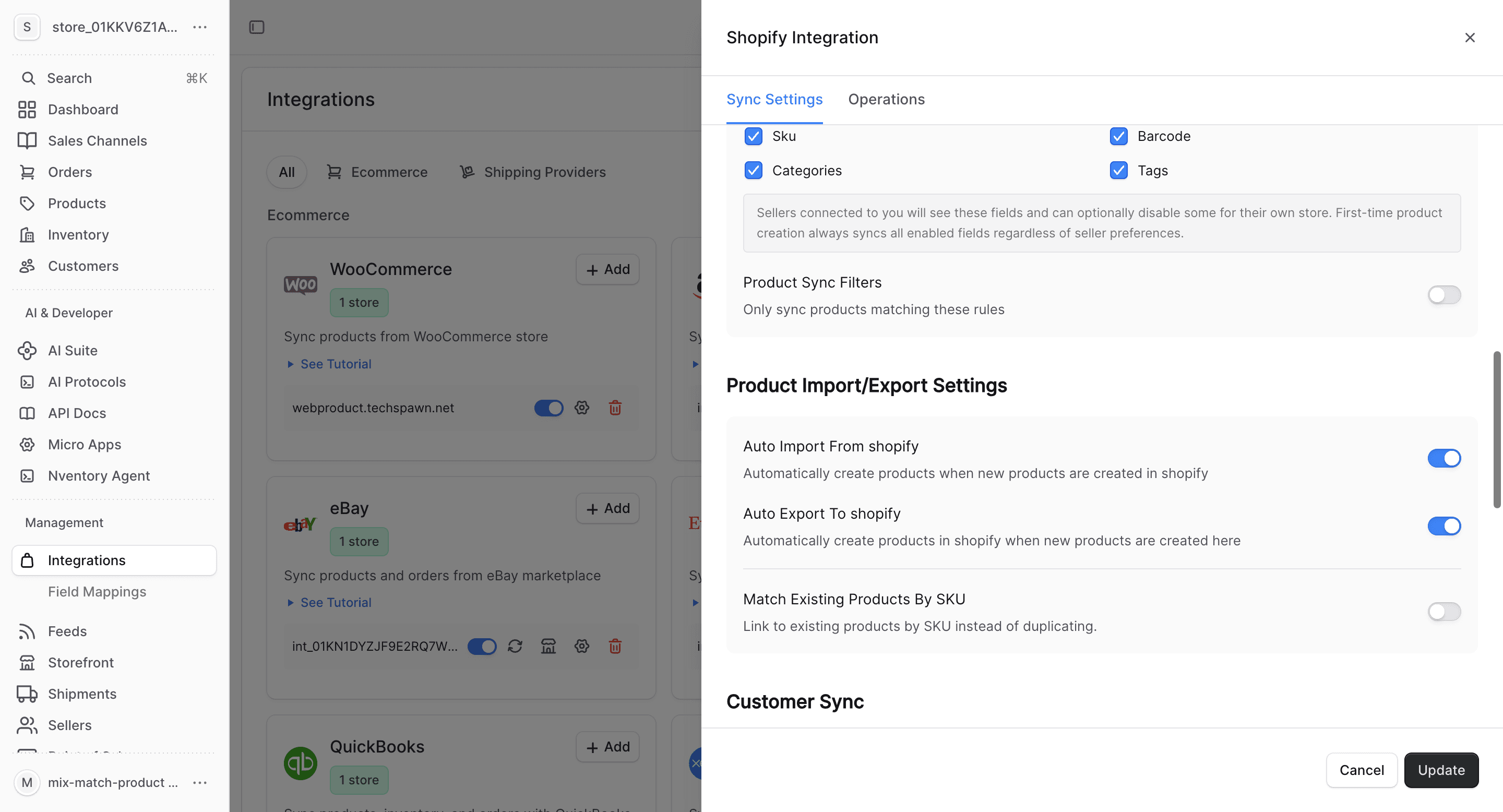
Configure Product Fields
Choose which product fields to sync and set up auto-import/export preferences.
Adding Another Shopify Store
If you already have a Nventory account and want to connect an additional Shopify store:
- Go to Integrations in the Nventory dashboard
- Click Add Shopify Store
- Enter the new store's
.myshopify.comdomain - Complete the OAuth flow
- The new store appears as a separate integration with its own sales channel
Each Shopify store gets its own sales channel in Nventory. Products, inventory, and orders are managed independently per store.
Webhooks
Nventory automatically registers these webhooks on your Shopify store:
| Event | What It Does |
|---|---|
| Product created/updated | Syncs product changes to Nventory |
| Inventory level updated | Keeps stock quantities in sync |
| Order created/updated/cancelled | Imports orders into Nventory |
| Order fulfilled | Syncs fulfillment status |
| Fulfillment updated | Updates tracking information |
Location Mapping
Shopify stores can have multiple fulfillment locations. Nventory lets you map each Shopify location to a stock location in Nventory.
See Location Mapping for details.
Bulk Operations
Use the Operations tab for one-time bulk imports, inventory syncs, and customer exports.
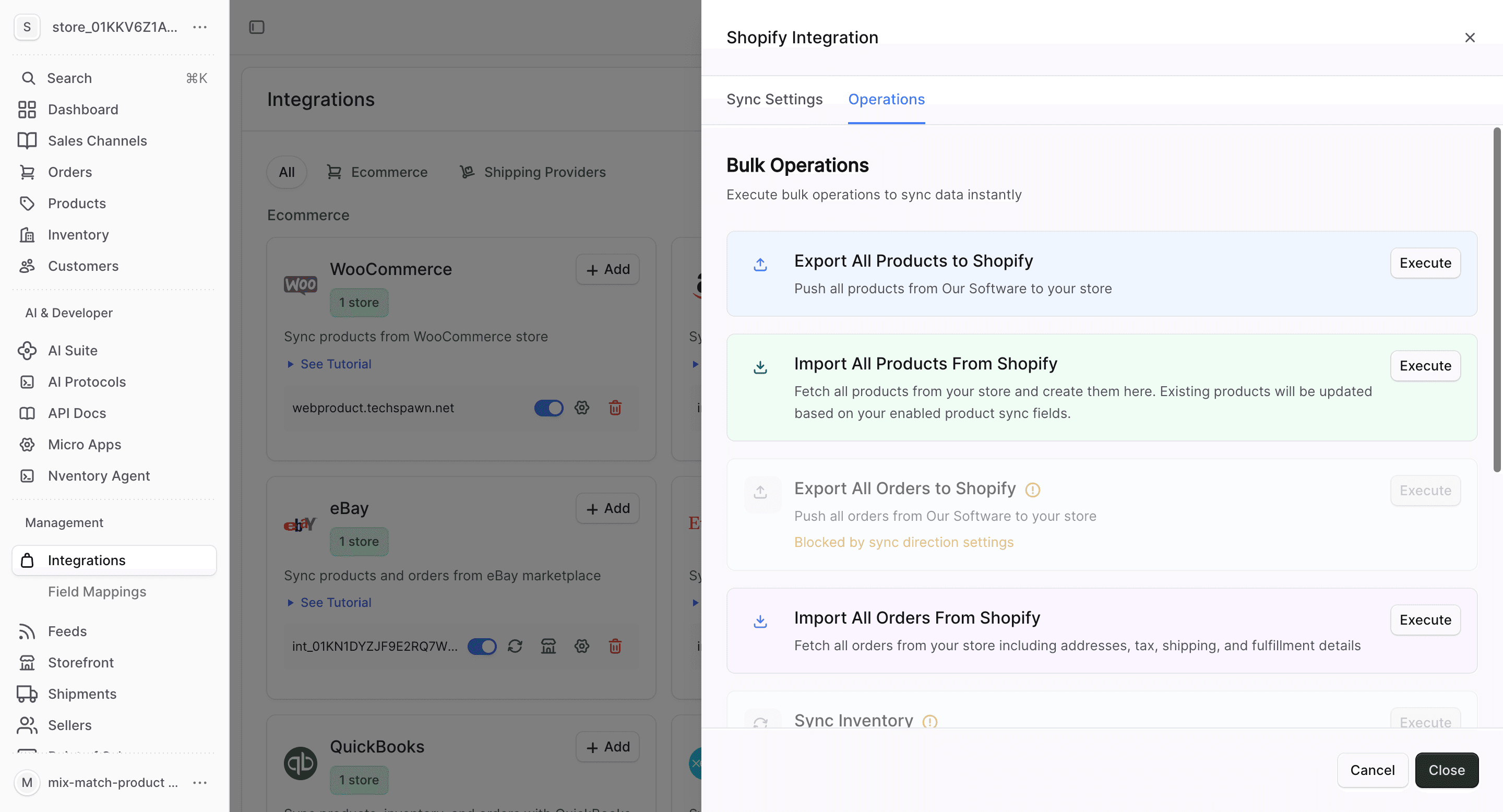
- Import All Orders — fetch all orders from your store
- Sync Inventory — update all stock quantities instantly
- Export All Customers — push customers to your store
- Import All Customers — fetch customers from your store
Re-authorization
If your Shopify access token is revoked (e.g., after reinstalling the app):
- Go to Integrations in the dashboard
- Find your Shopify integration
- Click to re-authorize
- Complete the Shopify OAuth flow
All your sync settings, location mappings, and product data are preserved.