Squarespace Integration
Connect your Squarespace store to Nventory using API credentials.
Connecting Your Squarespace Store
Nventory connects to Squarespace using an API key that you generate in your Squarespace admin.
Prerequisites
- A Squarespace website with a Commerce plan (Basic or Advanced)
- Admin access to your Squarespace site
Setup Steps
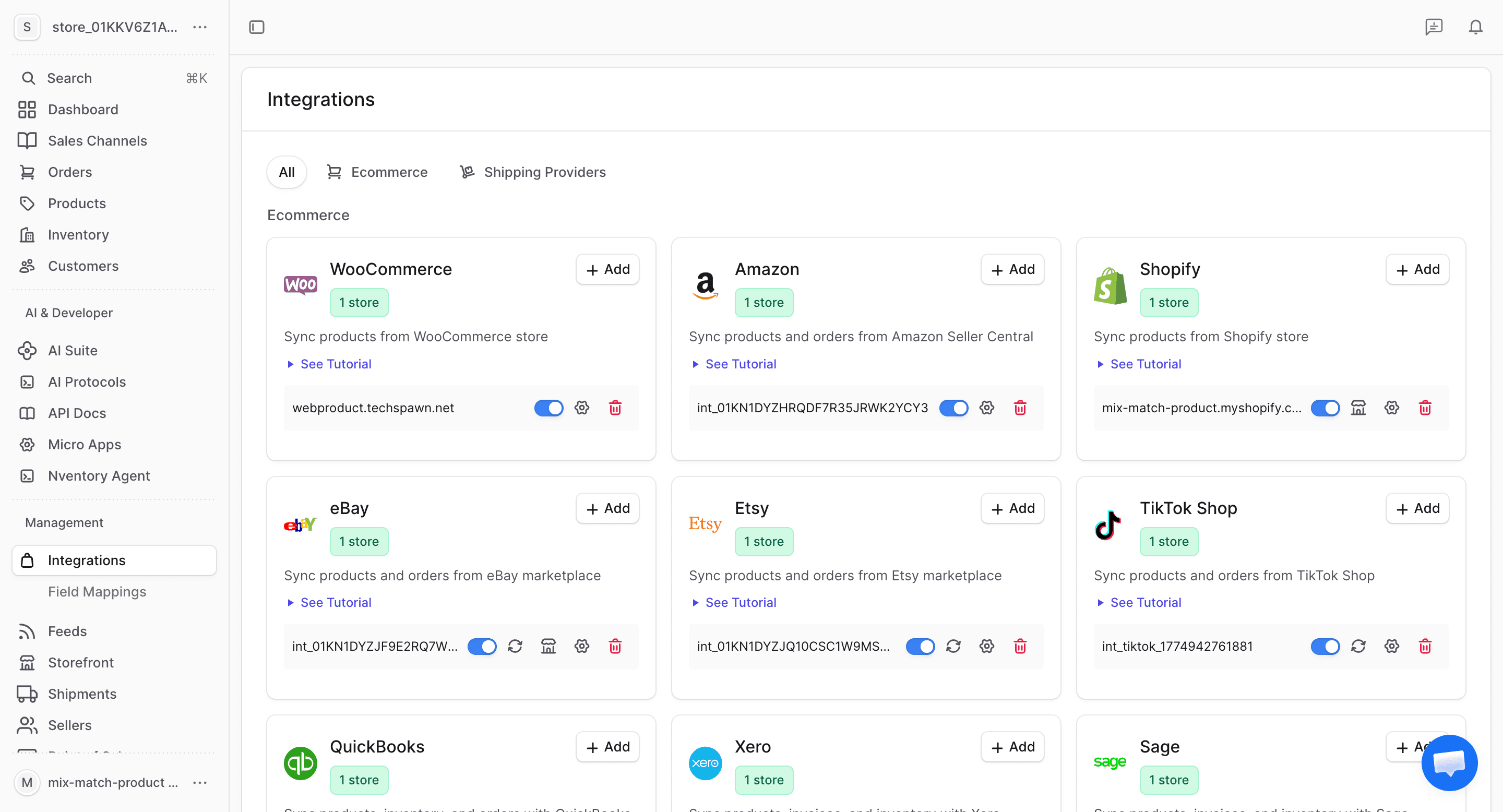
Navigate to Integrations
From your dashboard sidebar, click on Integrations to see all available platforms.
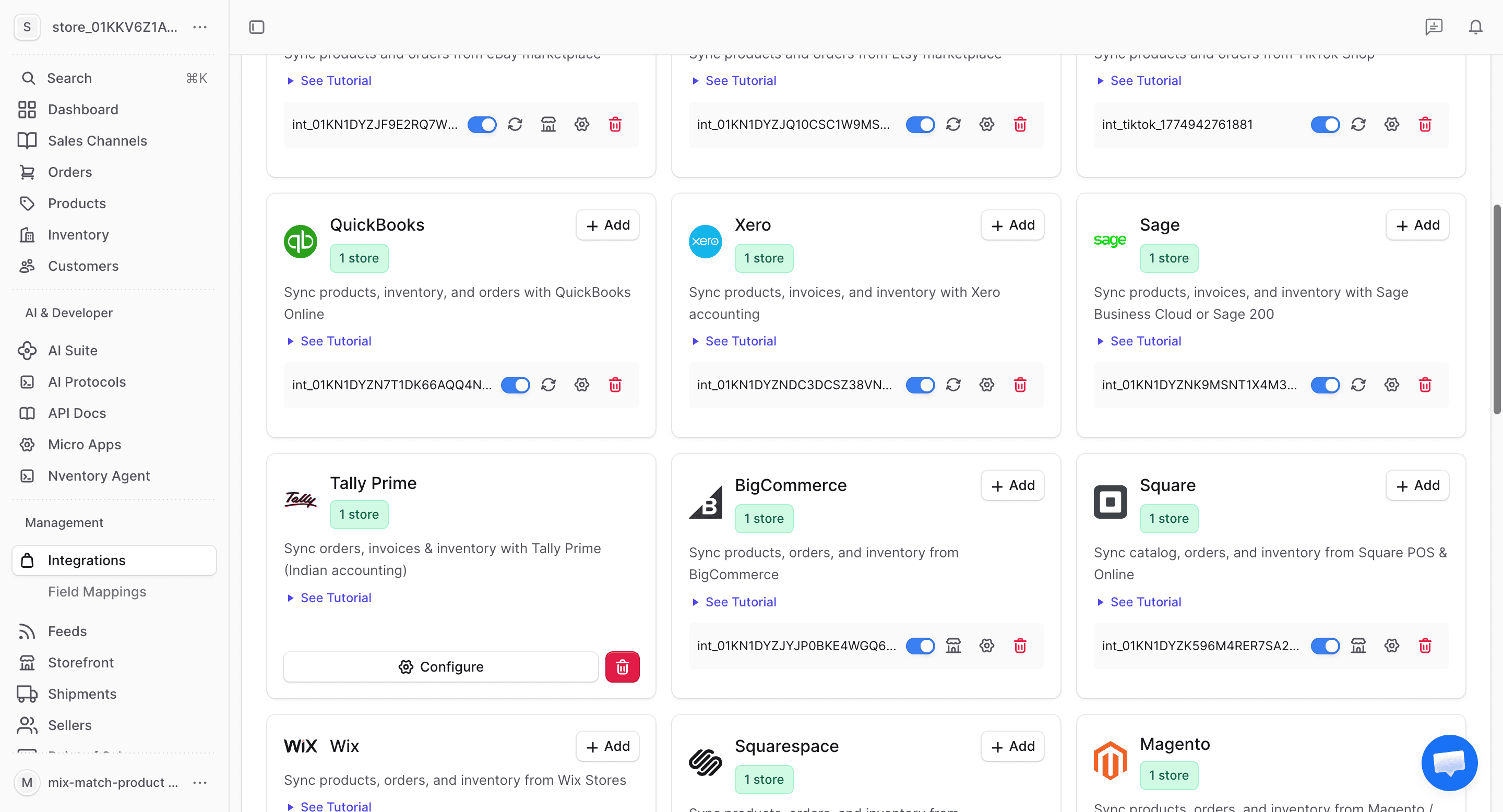
Click Add on Squarespace
Find the Squarespace card in the available integrations and click + Add to begin the setup.
Generate an API Key in Squarespace
In your Squarespace admin:
- Go to Settings → Developer Tools → API Keys
- Click Generate Key
- Copy the API key
If you don't see Developer Tools, make sure you're on a Commerce plan and have admin permissions.
Enter Your Credentials
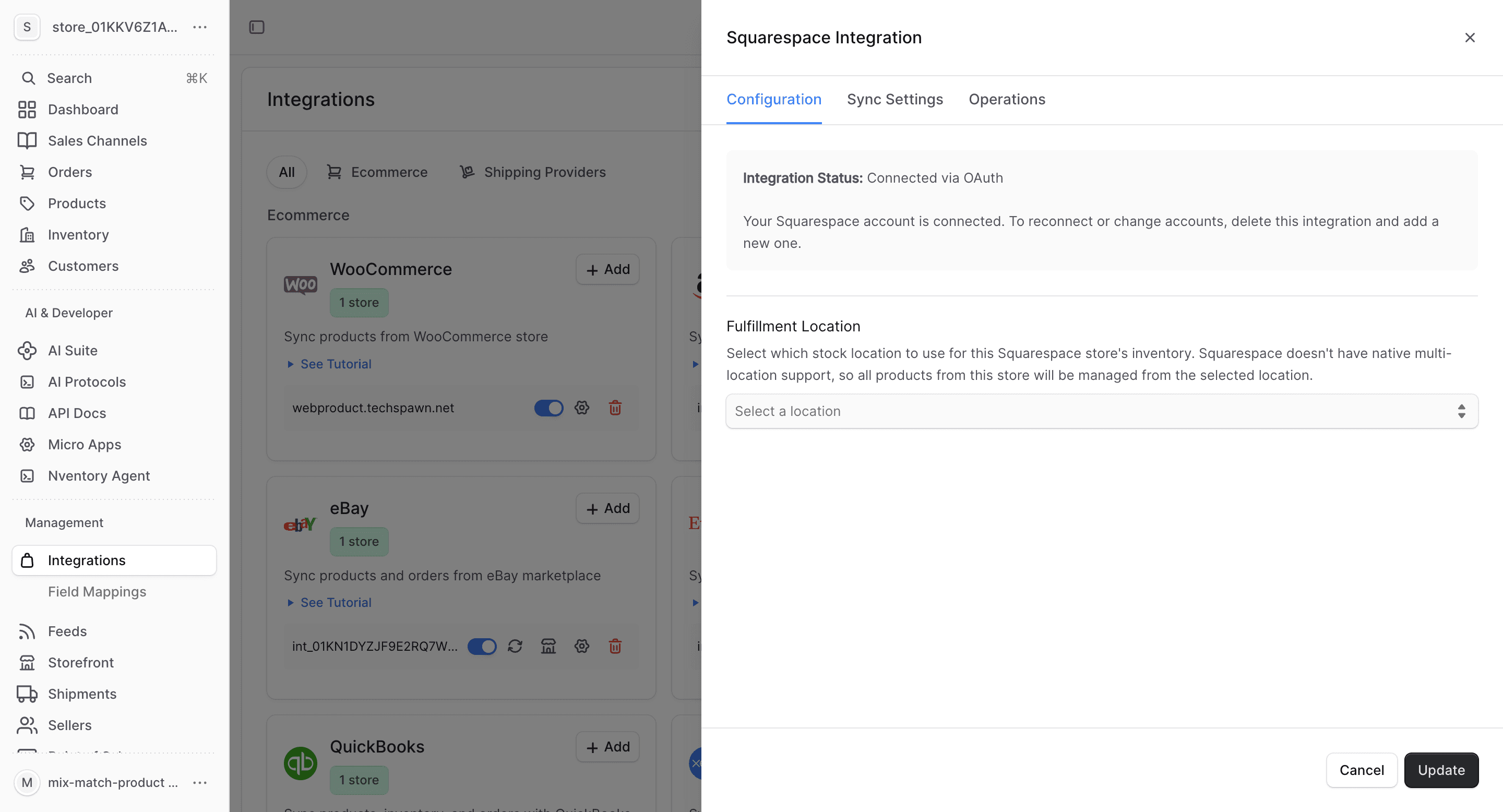
In the Nventory connection dialog, enter your Squarespace API key and site URL. Select a fulfillment location from the dropdown.
Click Save to connect.
Review Configuration
After saving, the Configuration tab shows your connected Squarespace store details and fulfillment location.
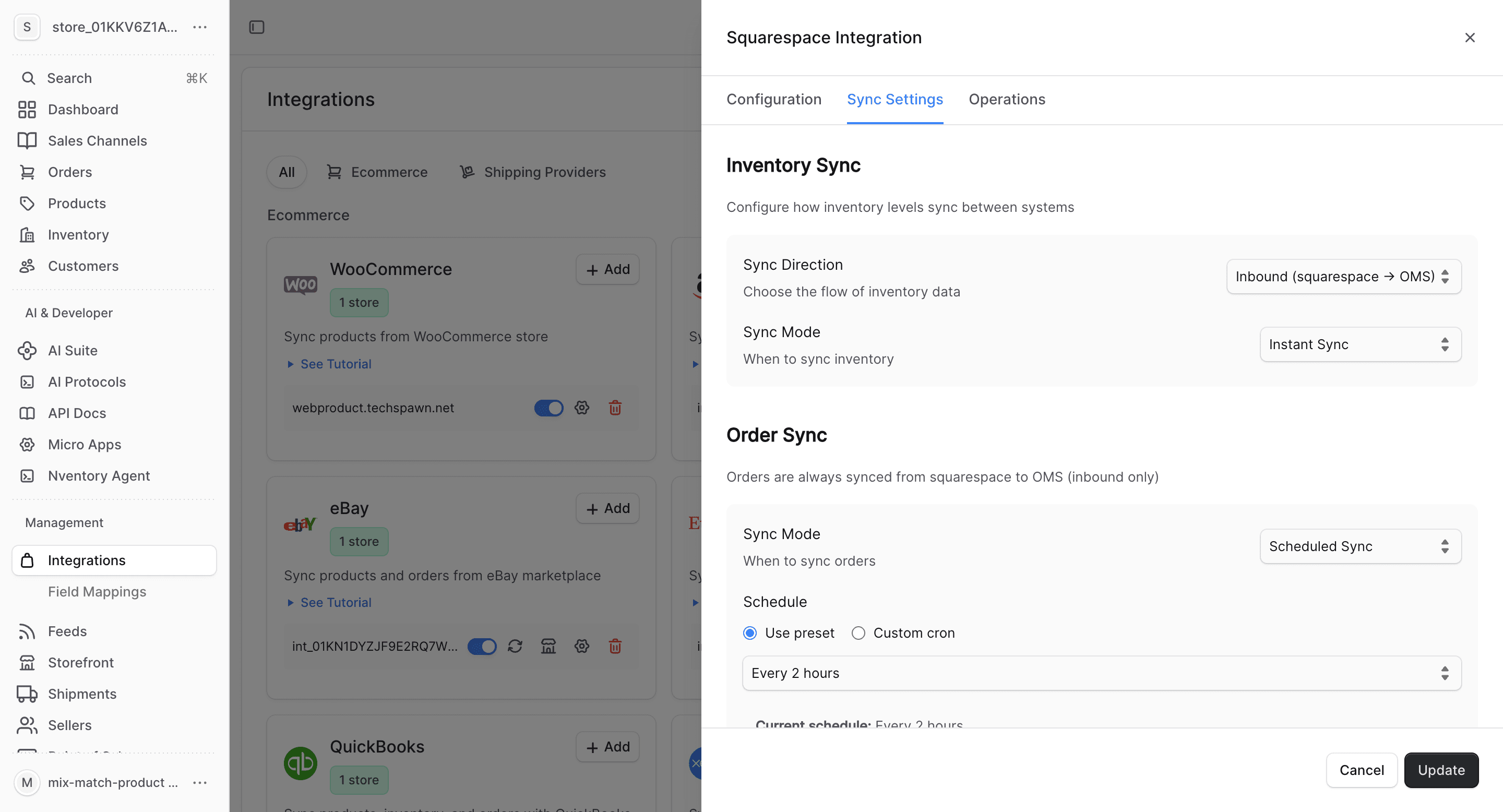
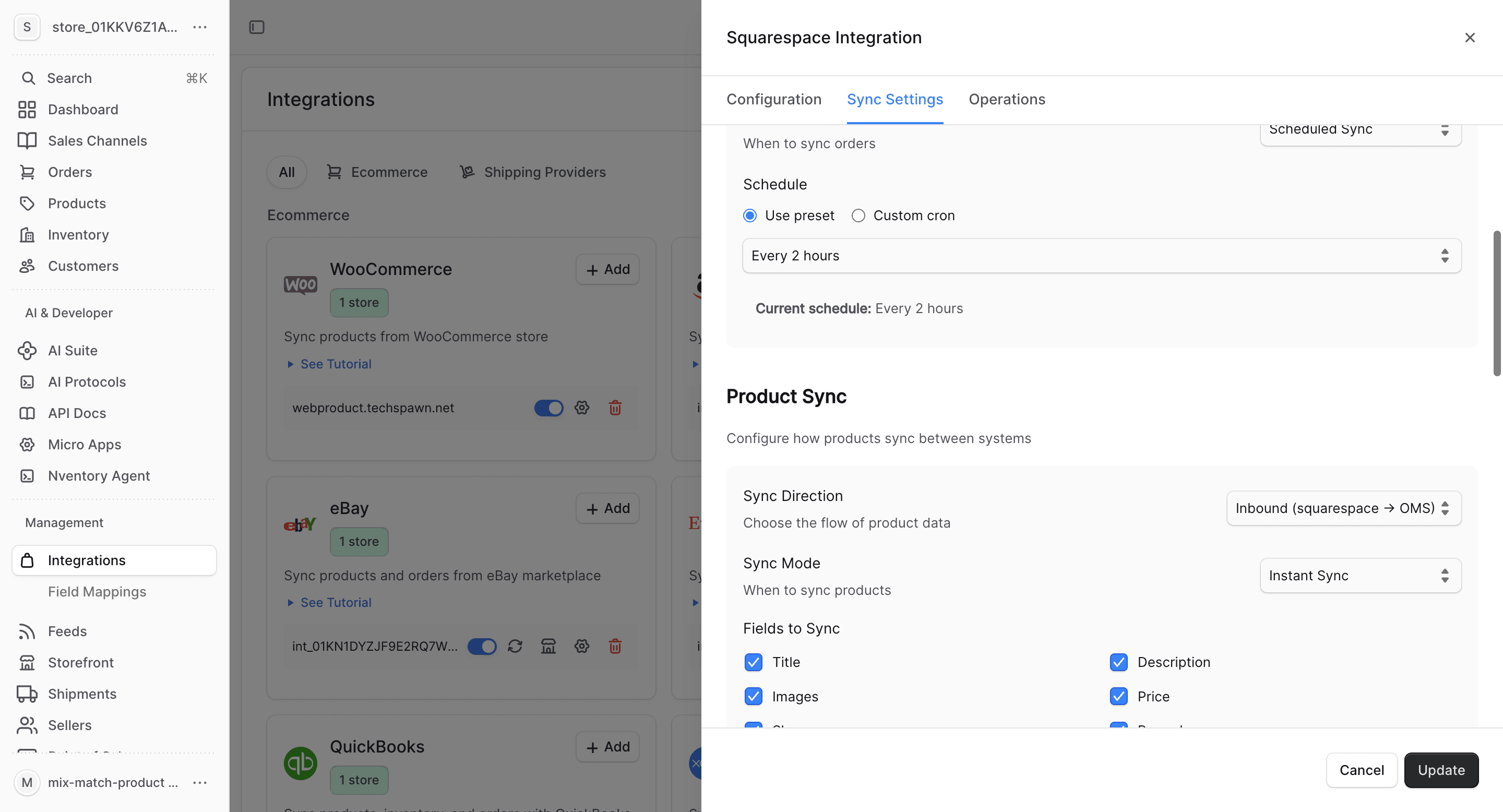
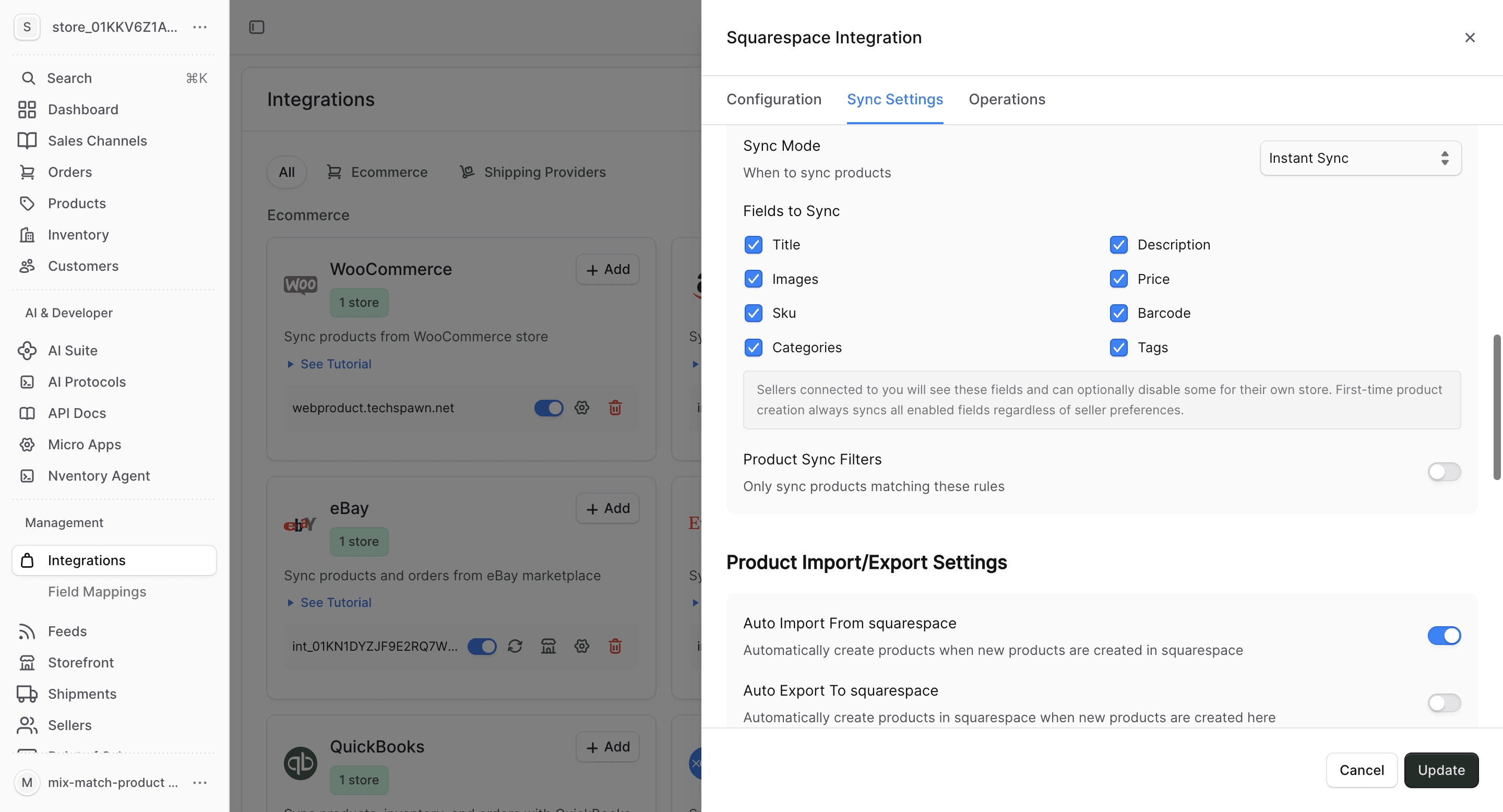
Configure Product Fields
Choose which product fields to sync and set up auto-import/export preferences.
What Gets Synced
| Entity | Import | Export | Real-time |
|---|---|---|---|
| Products | Yes | Yes | Webhook-driven |
| Inventory | Yes | Yes | Webhook-driven |
| Orders | Yes | No | Webhook-driven |
| Customers | Yes | No | With orders |
Bulk Operations
Use the Operations tab for one-time bulk imports and manual syncing.
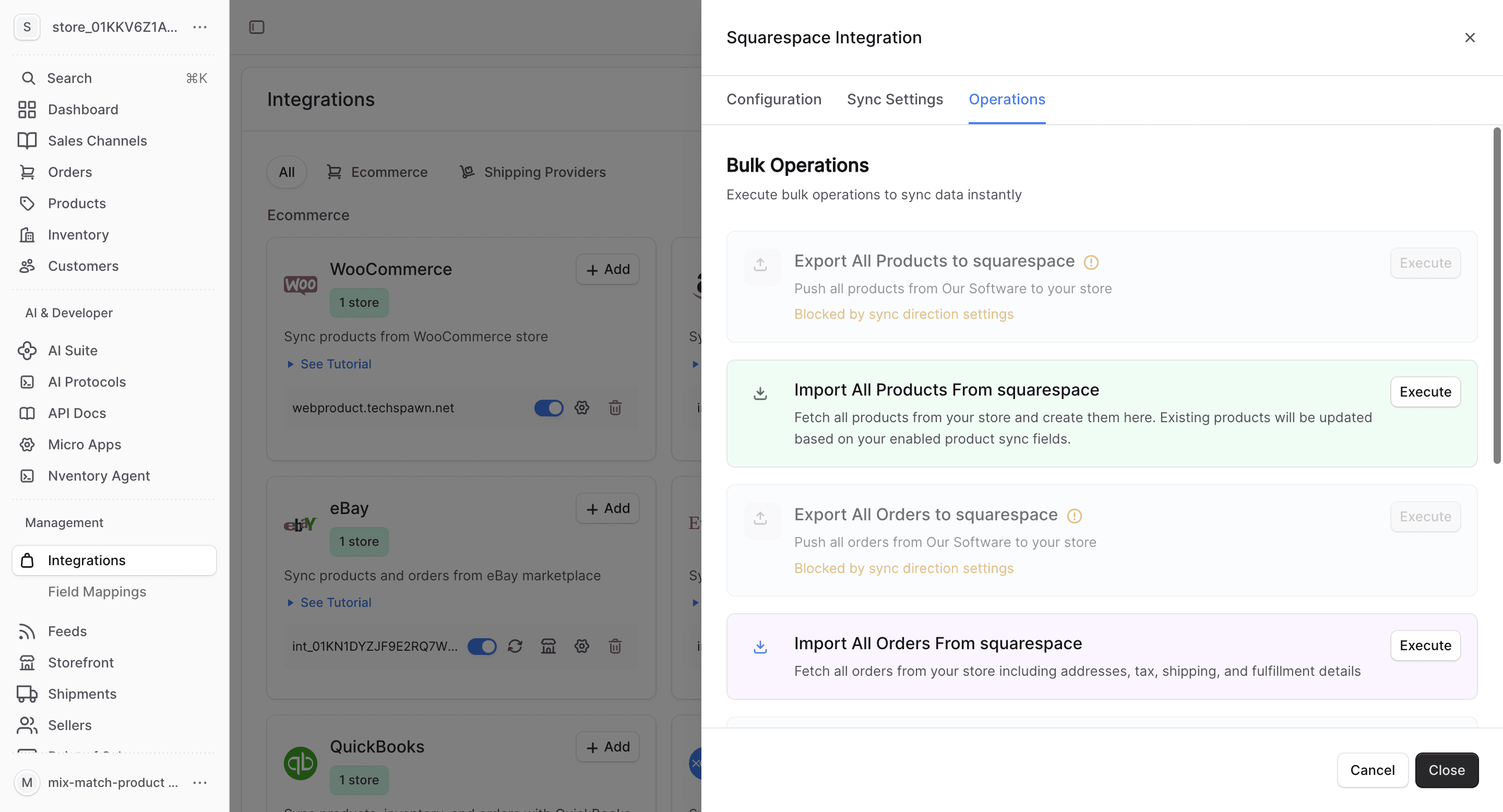
- Import All Orders — fetch all orders from Squarespace
- Sync Inventory — update all stock quantities
- Import All Customers — fetch customer data
Squarespace-Specific Notes
- Squarespace uses a single fulfillment location — select it during configuration
- Product variants in Squarespace map to Nventory product variants
- Squarespace's built-in commerce features (discounts, gift cards) remain managed on Squarespace
- Digital products are not synced