Sync Settings
Control sync direction, auto-sync, and field-level preferences for each integration.
Every integration in Nventory has configurable sync settings that let you control exactly how data flows between Nventory and your connected platforms.
Sync Direction
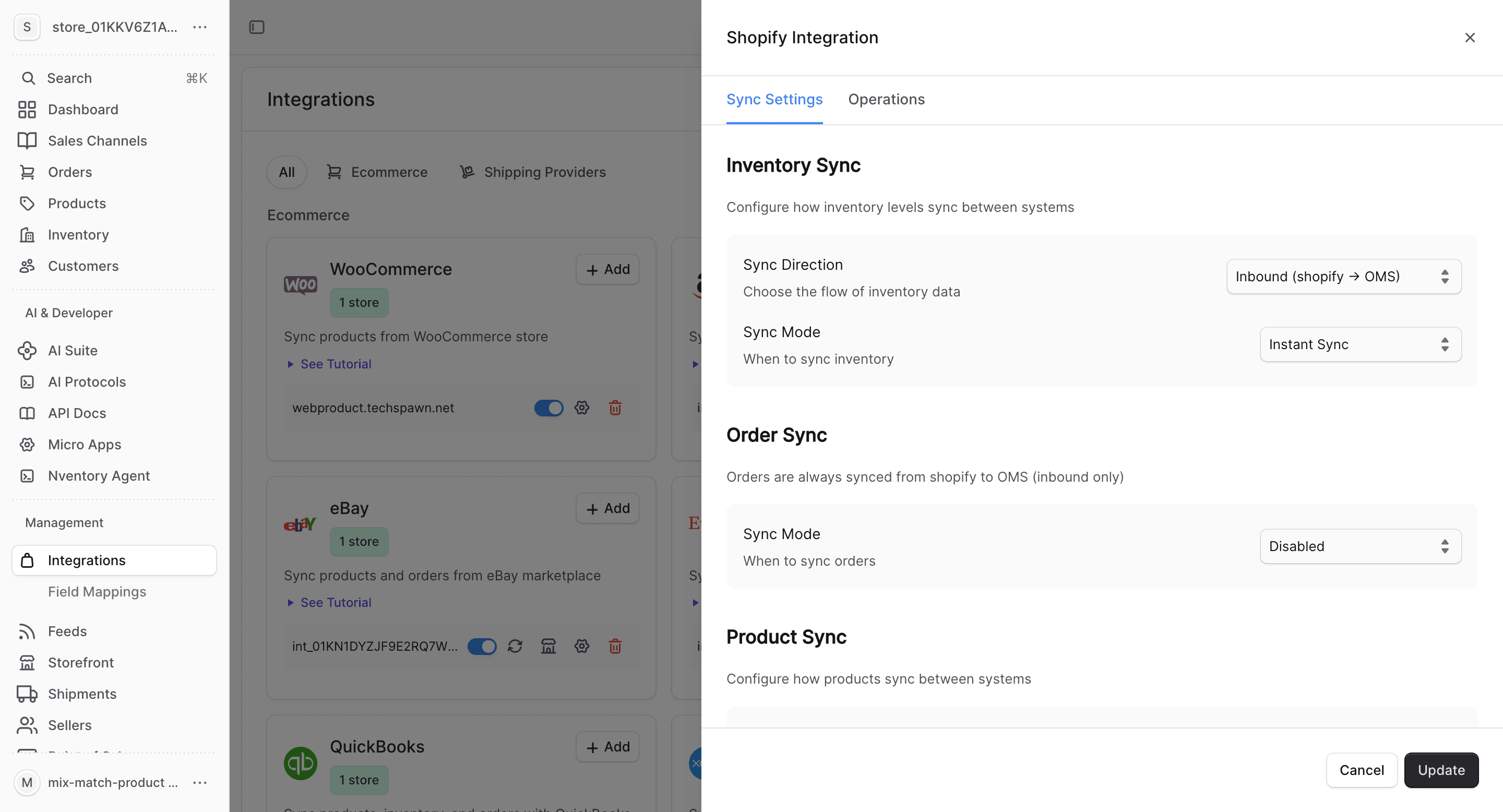
For each entity type (products, inventory, orders, customers), you can set the sync direction:
| Direction | Data Flow | Use Case |
|---|---|---|
| Inbound | Platform → Nventory | Import products/orders from your store |
| Outbound | Nventory → Platform | Push products/inventory to your store |
| Bidirectional | Both ways | Keep data in sync in both directions |
| Disabled | No sync | Manually manage this entity type |
Sync Mode
Choose when syncing happens:
| Mode | Behavior |
|---|---|
| Instant | Syncs immediately when changes are detected (via webhooks) |
| Scheduled | Syncs on a configurable schedule (cron-based) |
| Disabled | No automatic sync — use manual bulk operations only |
Sync Field Preferences
Control which product fields sync between Nventory and your platform:
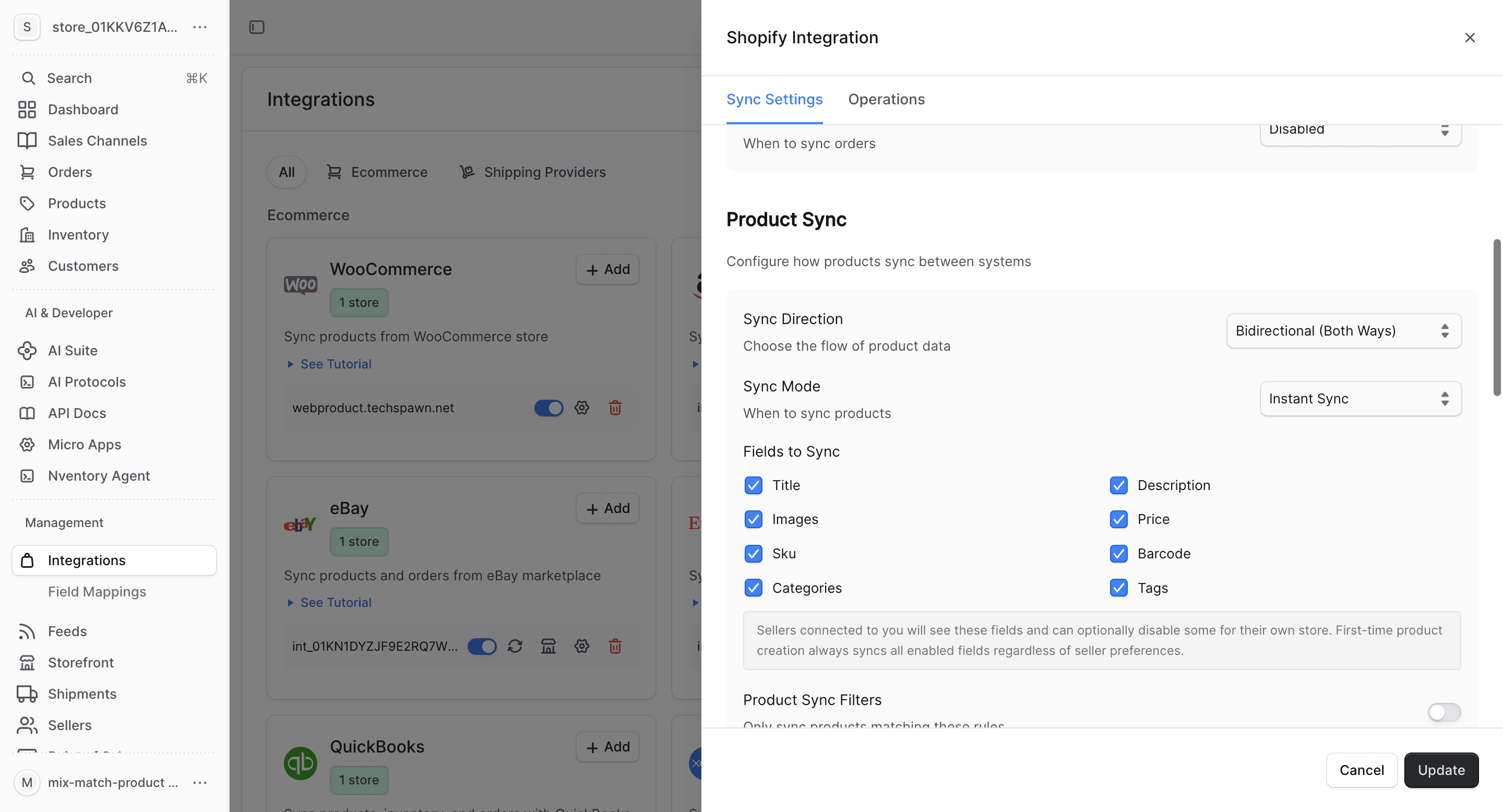
| Field | Description |
|---|---|
| Title | Product name |
| Description | Full product description |
| Images | Product gallery images |
| Price | Regular and sale prices |
| SKU | Stock keeping unit |
| Categories | Product categories |
| Tags | Product tags |
When a field is disabled, changes to that field are ignored during sync. This lets you customize certain product details locally while keeping other fields in sync.
Auto-Import & Auto-Export
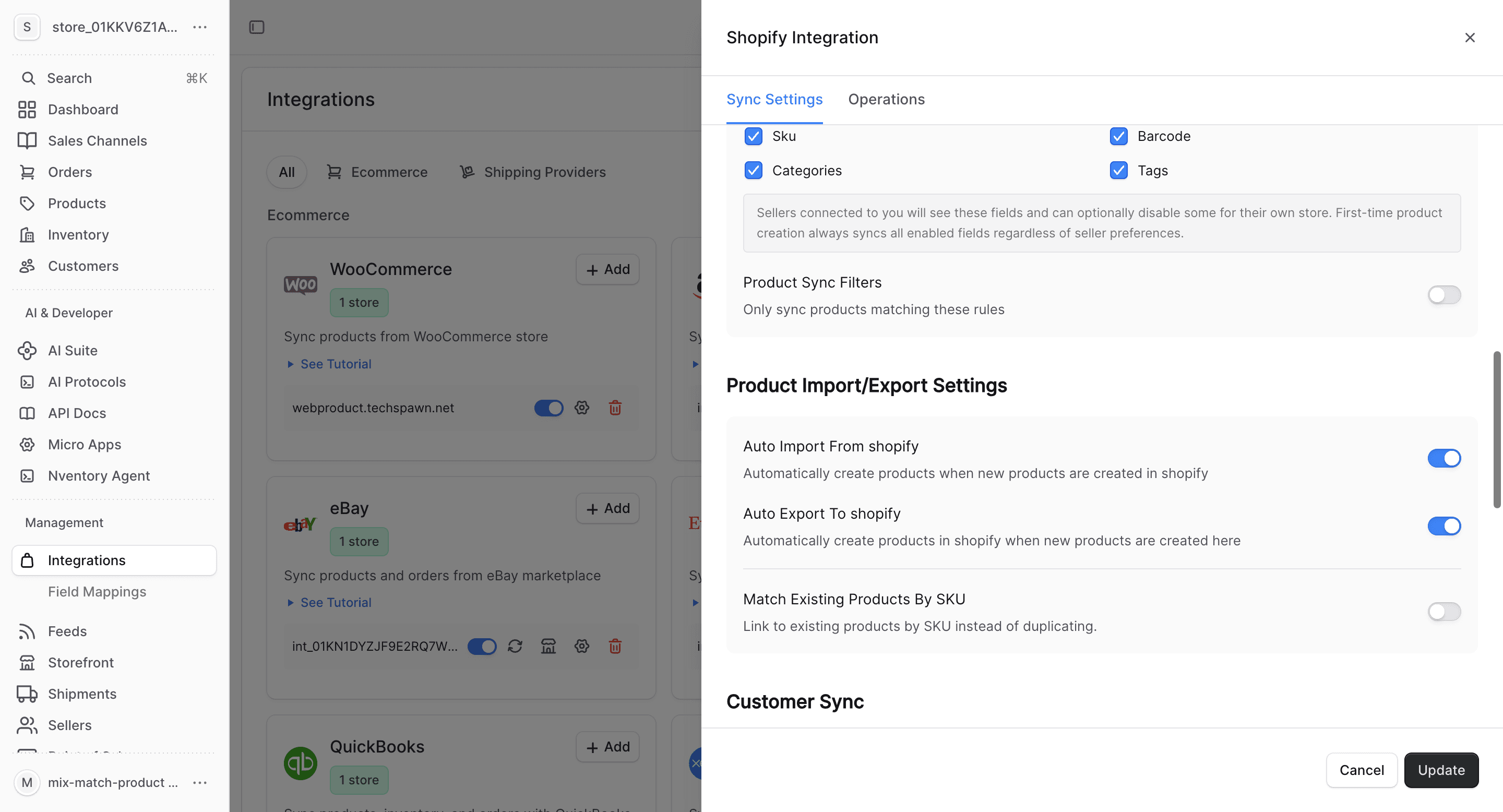
| Setting | What It Does |
|---|---|
| Auto-import | Automatically import new items when they're created on the platform |
| Auto-export | Automatically push changes from Nventory to the platform |
For supplier integrations, auto-import is enabled by default for products and inventory. For seller integrations, auto-export is enabled instead.
Default Settings
Supplier Integrations
| Entity | Direction | Auto-Import | Auto-Export |
|---|---|---|---|
| Products | Inbound | Yes | No |
| Inventory | Inbound | Yes | No |
| Orders | Disabled | No | No |
| Customers | Inbound | Yes | No |
Seller Integrations
| Entity | Direction | Auto-Import | Auto-Export |
|---|---|---|---|
| Products | Outbound | No | Yes |
| Inventory | Outbound | No | Yes |
| Orders | Disabled | No | No |
Managing Sync Settings
- Go to Integrations in the Nventory dashboard
- Click on the integration you want to configure
- Select the Sync Settings tab
- Adjust settings per entity type
- Changes take effect immediately
Bulk Operations
Each integration provides bulk operations for initial data import and manual syncing:
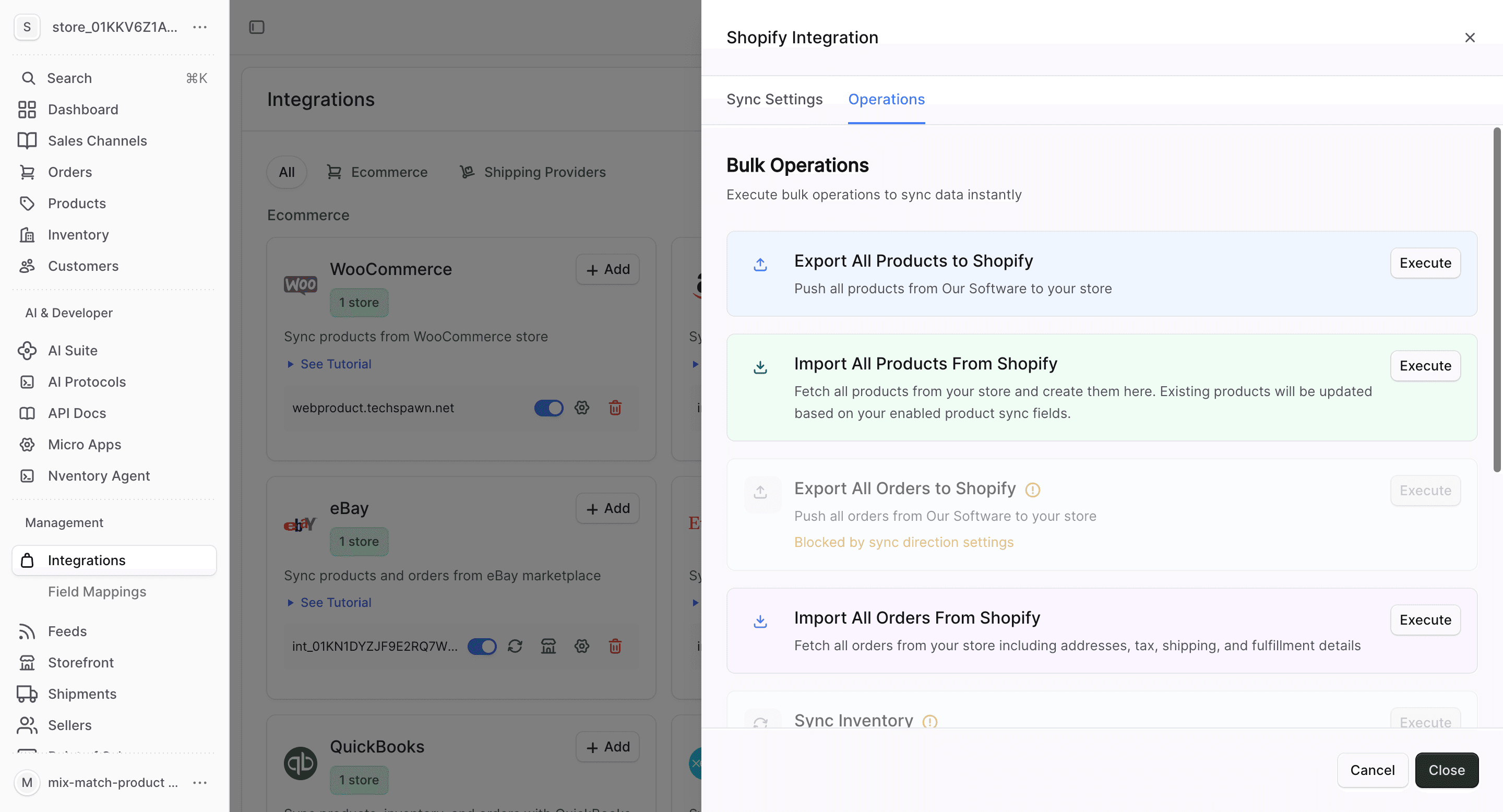
- Import All Orders — fetch all orders from your store
- Sync Inventory — update all stock quantities instantly
- Export All Customers — push customers to your store
- Import All Customers — fetch customers from your store
Failed Items
If individual items fail to sync, they appear in the Failed Items section. For each failed item, you can:
- See the error message
- Retry the sync for that item
- Skip the item