WooCommerce Integration
Connect your WooCommerce store to Nventory via OAuth.
Connecting Your WooCommerce Store
There are two ways to connect WooCommerce to Nventory:
- From the Nventory dashboard — OAuth flow
- From the WordPress plugin — one-click connection (see Getting Started)
Method 1: OAuth from Dashboard
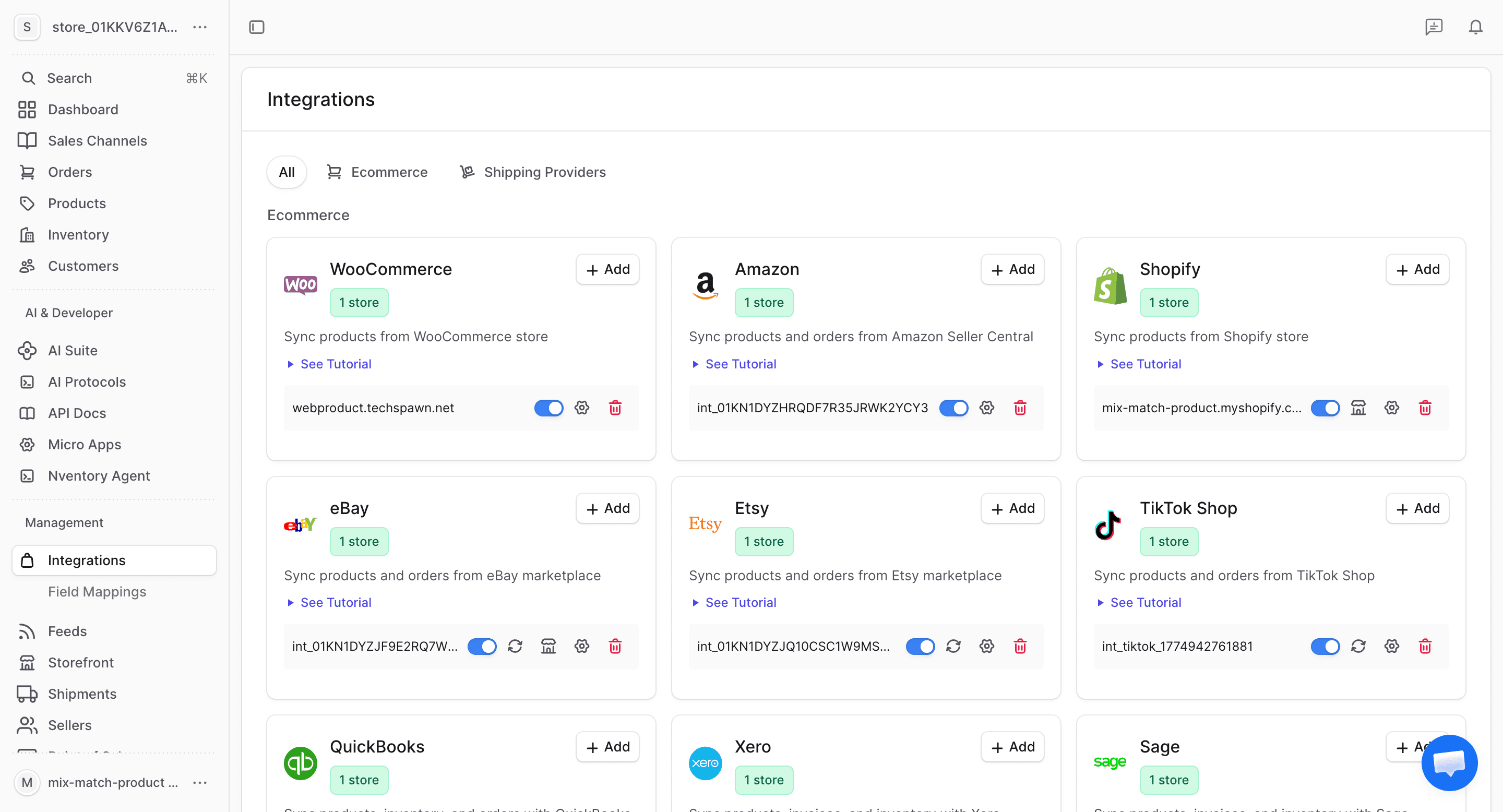
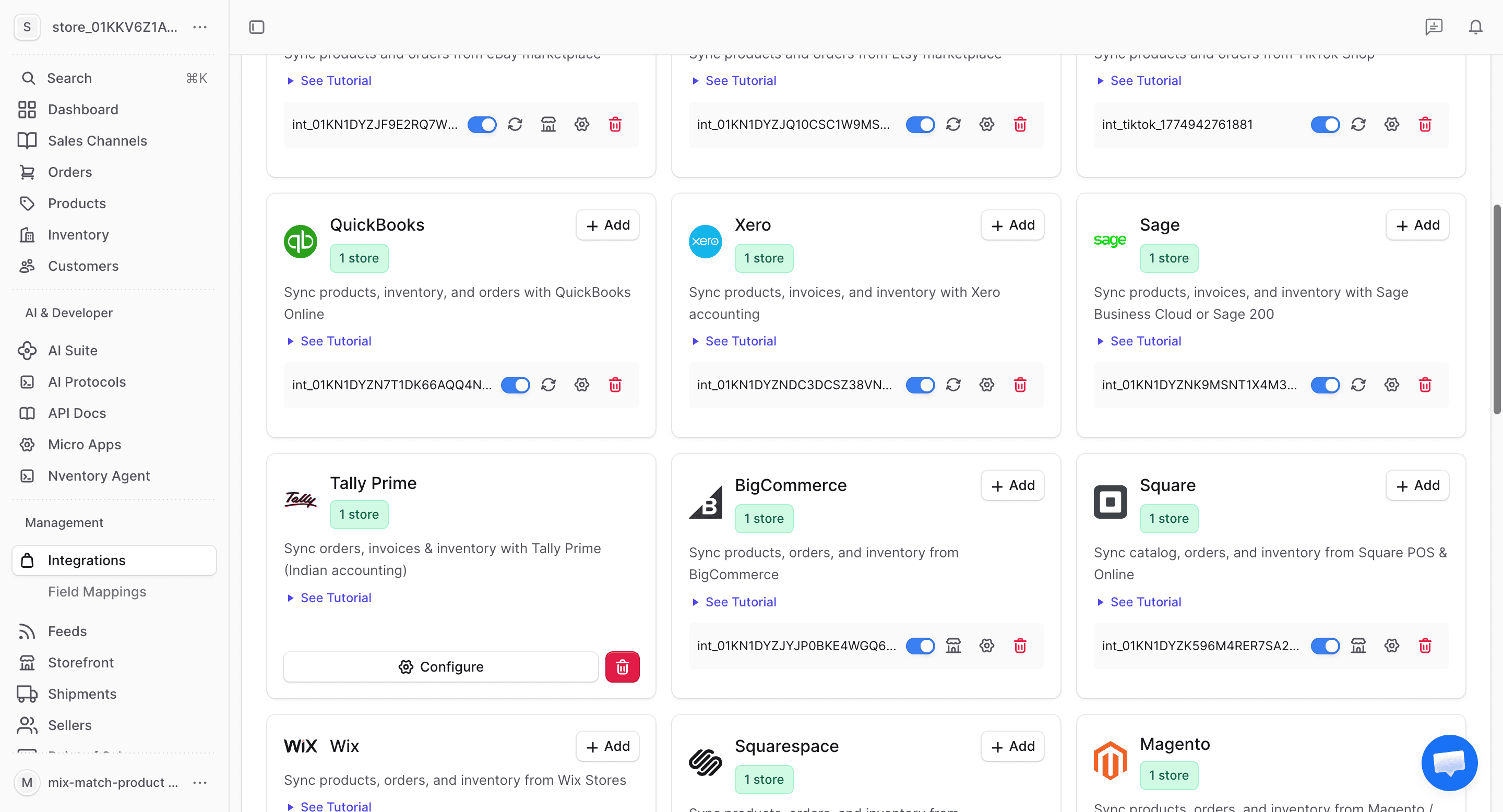
Navigate to Integrations
From your dashboard sidebar, click on Integrations to see all available platforms.
Enter Your Store URL
Enter your WooCommerce store URL (e.g., https://mystore.com) and click Connect WooCommerce. You'll be redirected to your store to authorize.
Authorize Access
You'll be redirected to your WooCommerce store's authorization page. This asks you to grant Nventory read/write access to your products, orders, and customers.
Click Approve to continue.
Automatic Configuration
After approval, Nventory automatically:
- Detects your store's country and currency
- Assigns the correct region for shipping and tax
- Creates a sales channel for this store
- Registers webhooks for real-time sync
- Creates a default stock location if needed
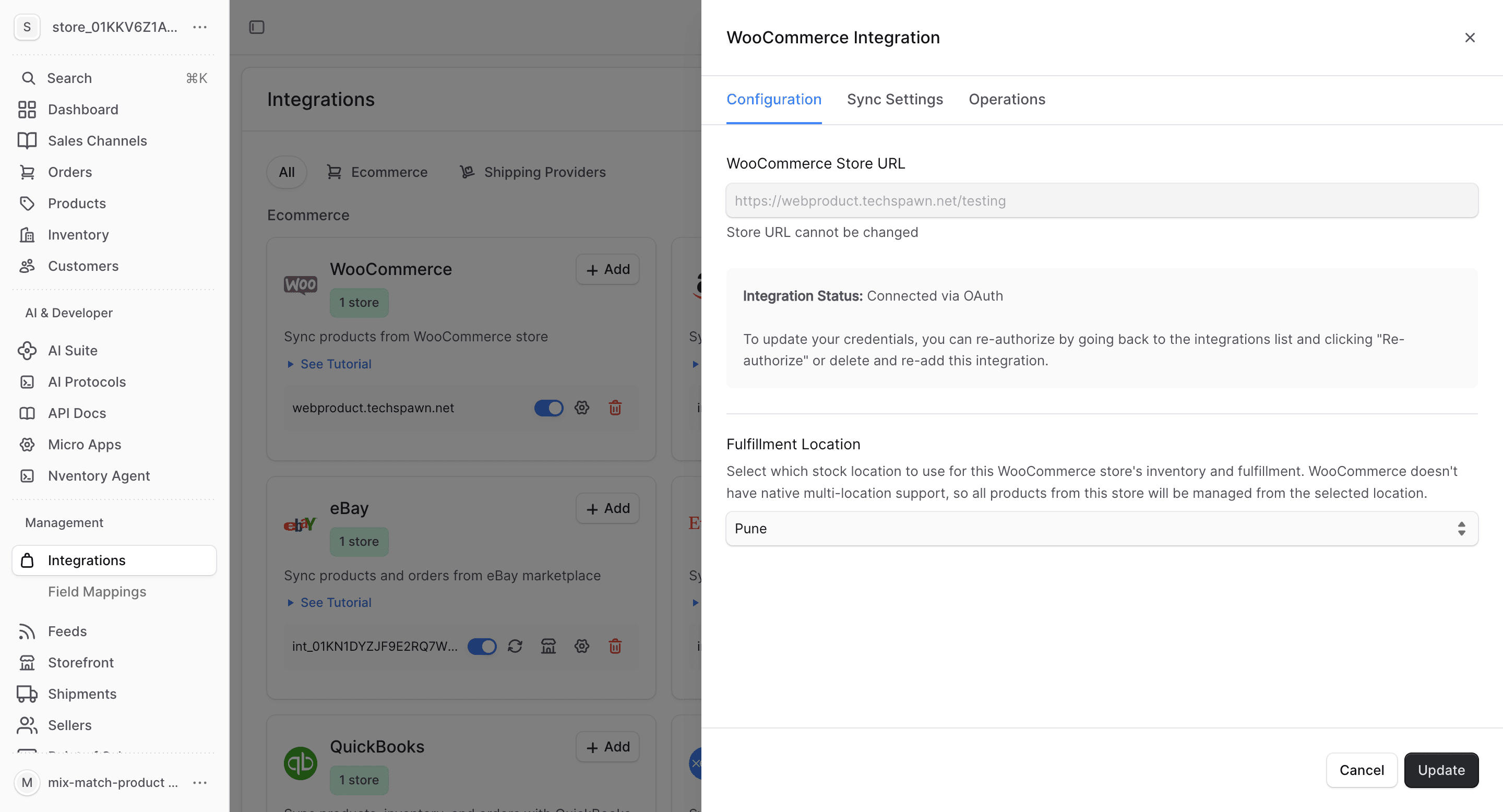
Review Configuration
The Configuration tab shows your connected WooCommerce store details, including the store URL and fulfillment location.
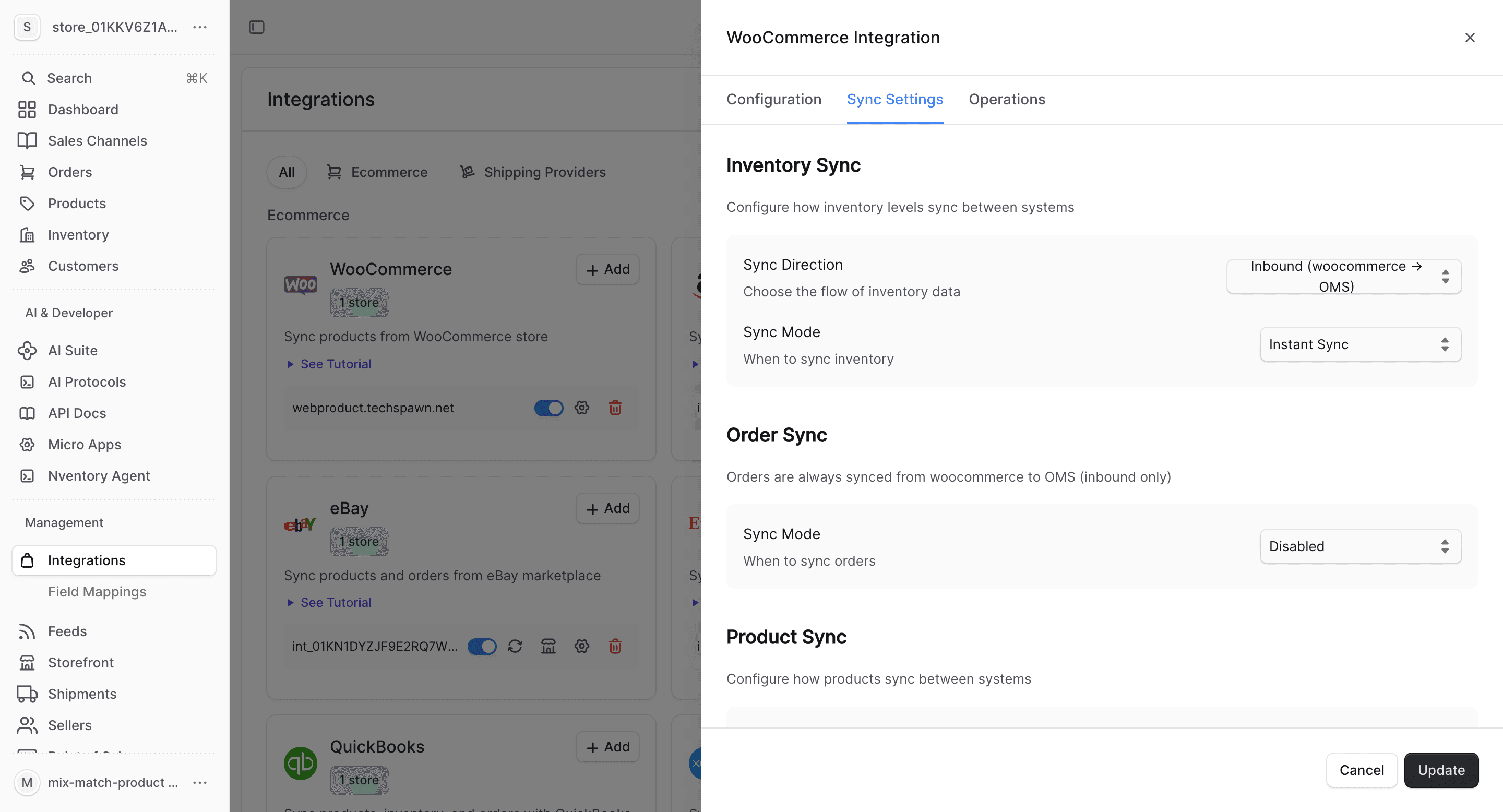
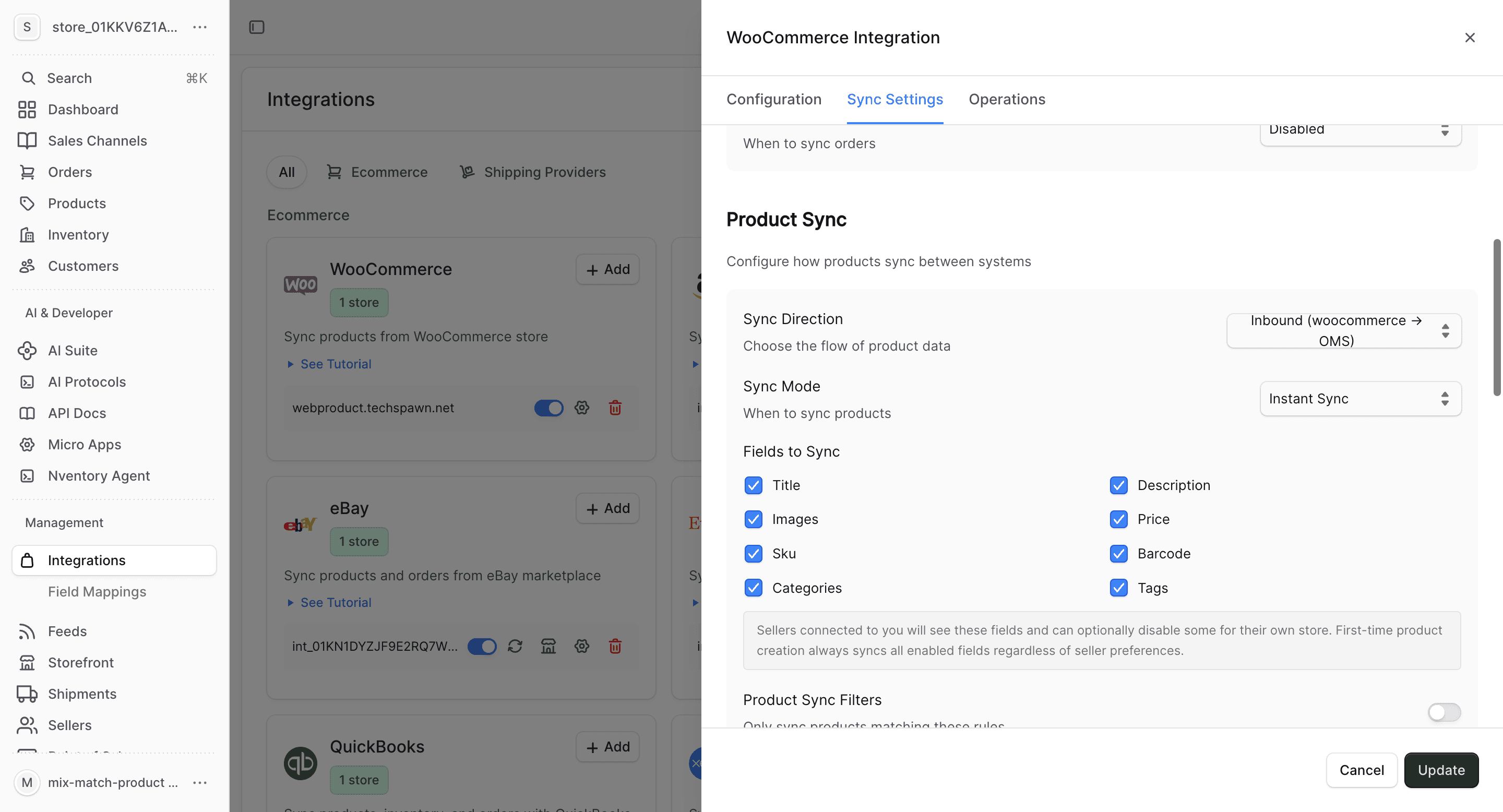
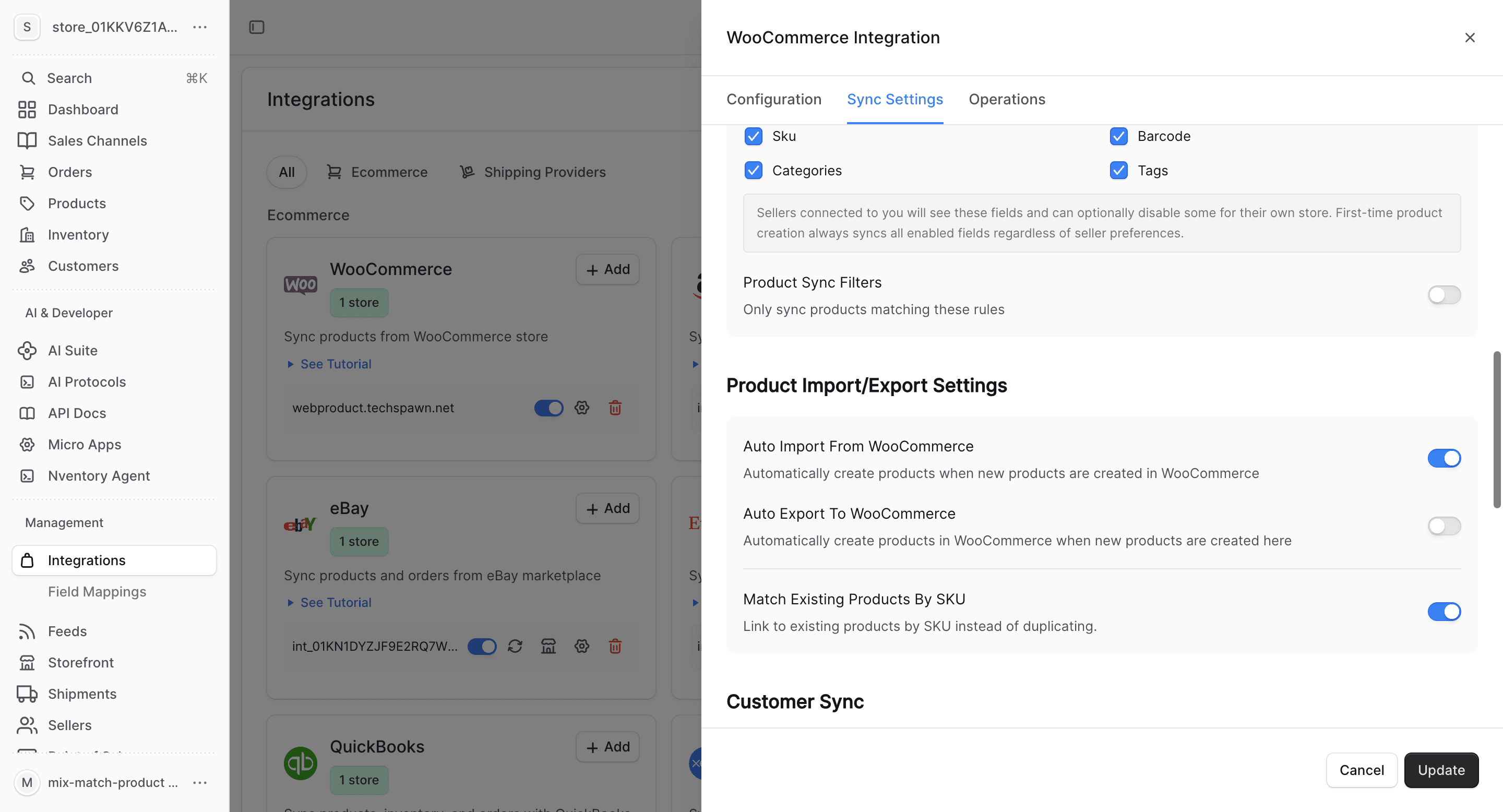
Configure Product Fields
Choose which product fields to sync and set up auto-import/export preferences.
Verify the Connection
Your WooCommerce store should now appear in the Integrations list with a Connected status.
Method 2: WordPress Plugin
If you have the Nventory WordPress plugin installed, you can connect directly from your WordPress admin. See Connecting to Nventory for details.
What Happens After Connection
Once connected, Nventory:
-
Registers webhooks on your WooCommerce store for real-time updates:
- Product created, updated, deleted
- Order created, updated
-
Detects your store settings:
- Store currency (USD, EUR, GBP, etc.)
- Store country → mapped to a shipping region
-
Creates a sales channel linked to your WooCommerce store
Your WooCommerce credentials are encrypted and stored securely. They are never exposed in the dashboard UI.
Bulk Operations
Use the Operations tab for bulk imports and manual syncing.
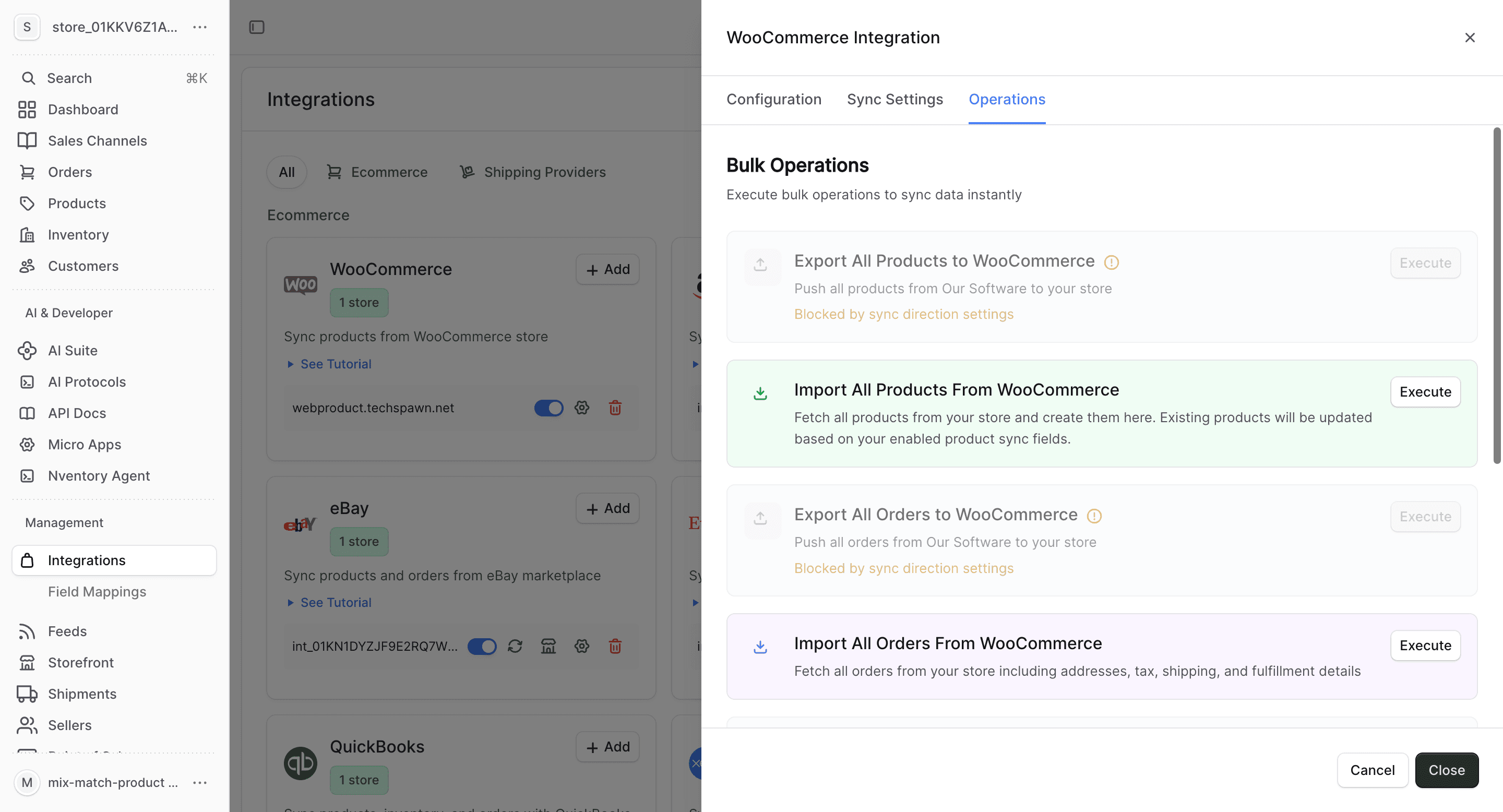
- Import All Orders — fetch all orders from your store
- Sync Inventory — update all stock quantities instantly
- Export All Customers — push customers to your store
- Import All Customers — fetch customers from your store
Re-authorization
If your WooCommerce credentials expire or you need to refresh them:
- Go to Integrations in the Nventory dashboard
- Find your WooCommerce integration
- Click Re-authorize
- Complete the OAuth flow again
Your products, orders, and sync settings are preserved — only the credentials are refreshed.
Seller WooCommerce Setup
If you're a seller connecting a WooCommerce store for publishing supplier products:
- Go to your Seller Dashboard
- Under your supplier connection, click Add WooCommerce Integration
- Complete the OAuth flow
- A dedicated sales channel is created for this seller-supplier relationship
- Products you publish will be synced to this WooCommerce store
Each seller integration gets its own channel, so you can publish different products to different stores.